

Your AI Agent Shouldn't Have Your Credentials
If your engineers use AI agents with Kubernetes, there's a good chance at least one of them has done it the quick way: pointed the agent at a cluster using their own kubeconfig. It works. The agent reads state, runs commands and makes changes. But it does all of that with a human's full permissions, and nothing sits between the agent and production.
When it gets something wrong, you have three problems at once. You can't easily see what it did. You can't stop it partway through. And there's no clean way to undo it.
Portainer-Command is built to close that gap. It lets your teams put AI agents to work on Kubernetes, while keeping every change under human control.
The problem isn't the AI. It's the access.
Anyone can connect an AI agent to kubectl today. Capability isn't what's missing. What's missing is a way to say yes to it safely.
No CISO wants to approve an agent that holds an engineer's cluster credentials. No ops lead wants to be on call the night that agent makes a confident mistake. So teams end up in one of two places. Either AI for ops never gets approved, or engineers use it anyway, from their laptops, where nobody else can see it.
Neither is a good outcome. Portainer-Command gives you a third option: let agents help, but only through a path you control.
How Portainer-Command works
Portainer-Command sits between your AI agents and your clusters. The simplest way to think about it is as a token vending machine for AI.
When an agent needs to look at a cluster, Portainer-Command issues it temporary, read-only credentials, scoped to limited areas of your infrastructure. Each grant carries a stated reason and an expiry, and it's tied to the person who started the task. The agent is never given a human's credentials, so it never acts with a human's full permissions.
When an agent tries to change something, the write doesn't reach the cluster. It goes to a synthetic endpoint that Portainer-Command controls, which intercepts the change and turns it into a pull request against your GitOps repository. The pull request carries the agent's reasoning and the name of the person who started the task. A human reviews it and decides. If they merge it, Portainer Business applies the change through GitOps, the same way it applies any other change.
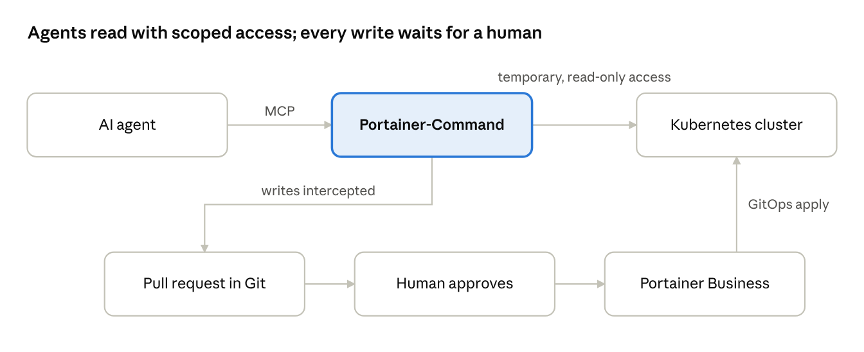
How agent reads and writes flow through Portainer-Command
So agents can do real work, like investigating a problem or drafting a fix, but they can't change production on their own. The final decision always rests with a person.
You decide where agents are allowed
Not every environment needs the same rules. Admins set, per environment, whether an agent can read live cluster state, read GitOps state, or propose changes. They can also restrict agents to specific namespaces.
A common setup looks like this: open read access in development, where engineers want to move quickly; propose-only in staging, so every change is reviewed; and no agent access at all in production until you're ready. As your team builds confidence, you open things up one environment at a time.
When something goes wrong
Even with a human approving every change, mistakes will happen. What matters is how quickly you can understand them and recover. Portainer-Command gives you three tools for that.
A timeline for incident review. Every agent session is recorded with the person who started it, the reason given, the environment and how long it lasted. Every proposed change sits in Git history with its approver. When an incident happens, you can trace what an agent looked at, what it proposed and who approved it, across your whole fleet in one place.
Undo. Any change an agent made can be reverted in one click, and an environment can be rolled back to a known-good state.
An emergency halt. If an agent starts behaving in a way you don't expect, one control revokes every live agent session in an environment, or for a single user, and blocks new ones until you lift the halt. That's the difference from an agent running on an engineer's laptop: there, nothing sits in the path that you can switch off.
Where to start
There are two ways in, depending on where your team is today.
If you haven't started using AI for ops yet, the built-in workspace is the easiest place to begin. It needs no setup, runs against an AI endpoint you choose, and comes with a prompt library for real tasks such as security audits, pinning image versions and writing network policies. Every change can be undone, so your team can learn with a safety net.
If your engineers already use AI agents, they can keep the tools they know. Claude Desktop, ChatGPT Desktop and other MCP-compatible clients connect to Portainer-Command directly, so their existing workflow now runs through a path you can see and control.
One thing to know up front: Portainer-Command assumes Git is the source of truth for your clusters. If you're not using GitOps yet, it's a good reason to start, because routing every change through a pull request gives you review, history and rollback as a matter of course.
For Portainer Business customers, Portainer-Command is available now in the add-on catalog.
See it live
On October 14th, Nathan Peck, Chief Product Officer at Portainer, will demonstrate Portainer-Command on a live environment. He'll show an agent's write being intercepted and turned into a pull request, walk through the incident timeline, and use the emergency halt. There will be time for your questions at the end.
If you're a platform engineer being asked to let AI in, or a CISO being asked to sign off on it, this session is for you.